
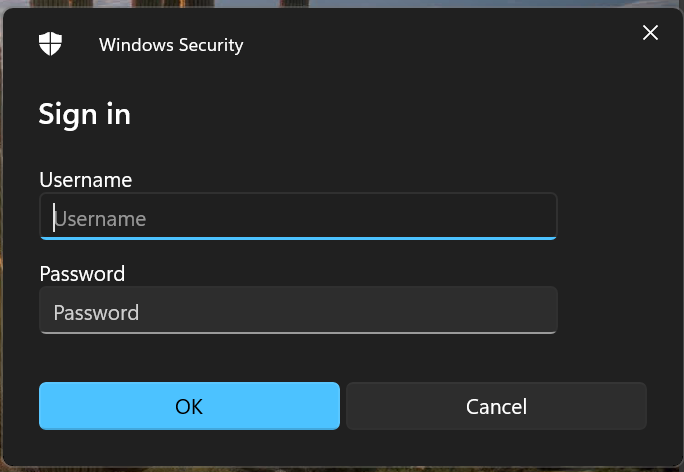
In an ideal world we’d be using certificates to authenticate to eduroam, but without that you can make the experience a lot easier for managed users, when their laptop sees eduroam it will ask them just for their username (email/upn) and password, and will not ask for the certificate to valid. Hopefully I’ll have another guide on how to do eduroam OpenRoaming as in the future.
This guide will explain how you do this.
Certification Authority Deployment
Obtain your Certification Authority certification for eduroam, you can export it from your pc if you have it via CAT.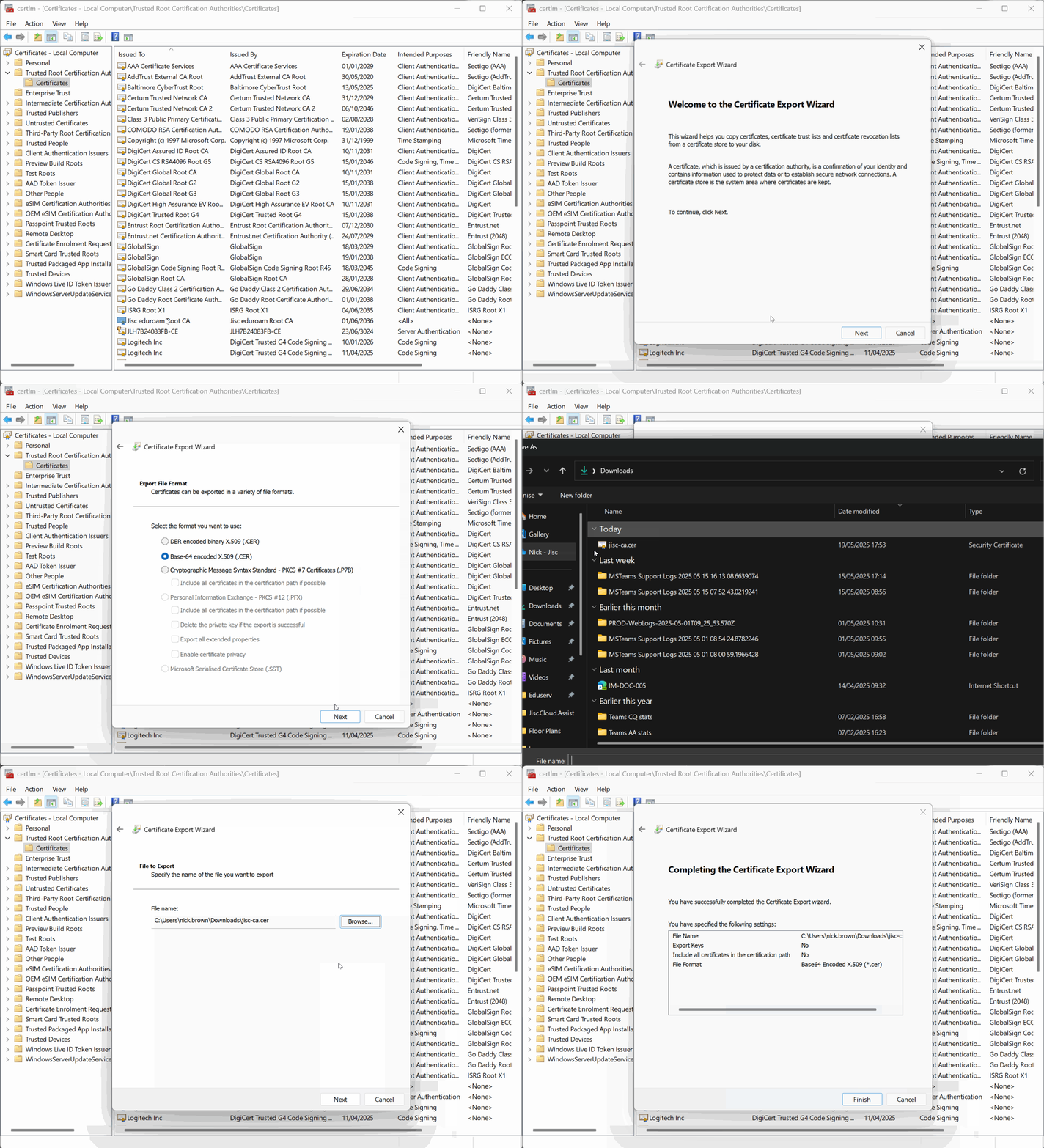
Deploy that certificate as a trusted certificate to each of your OS’s
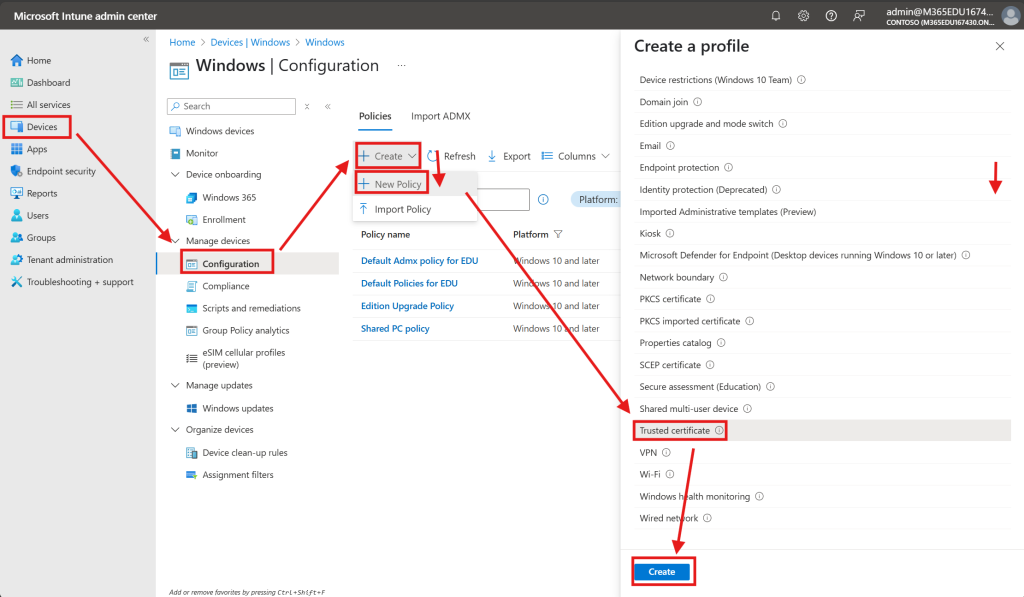
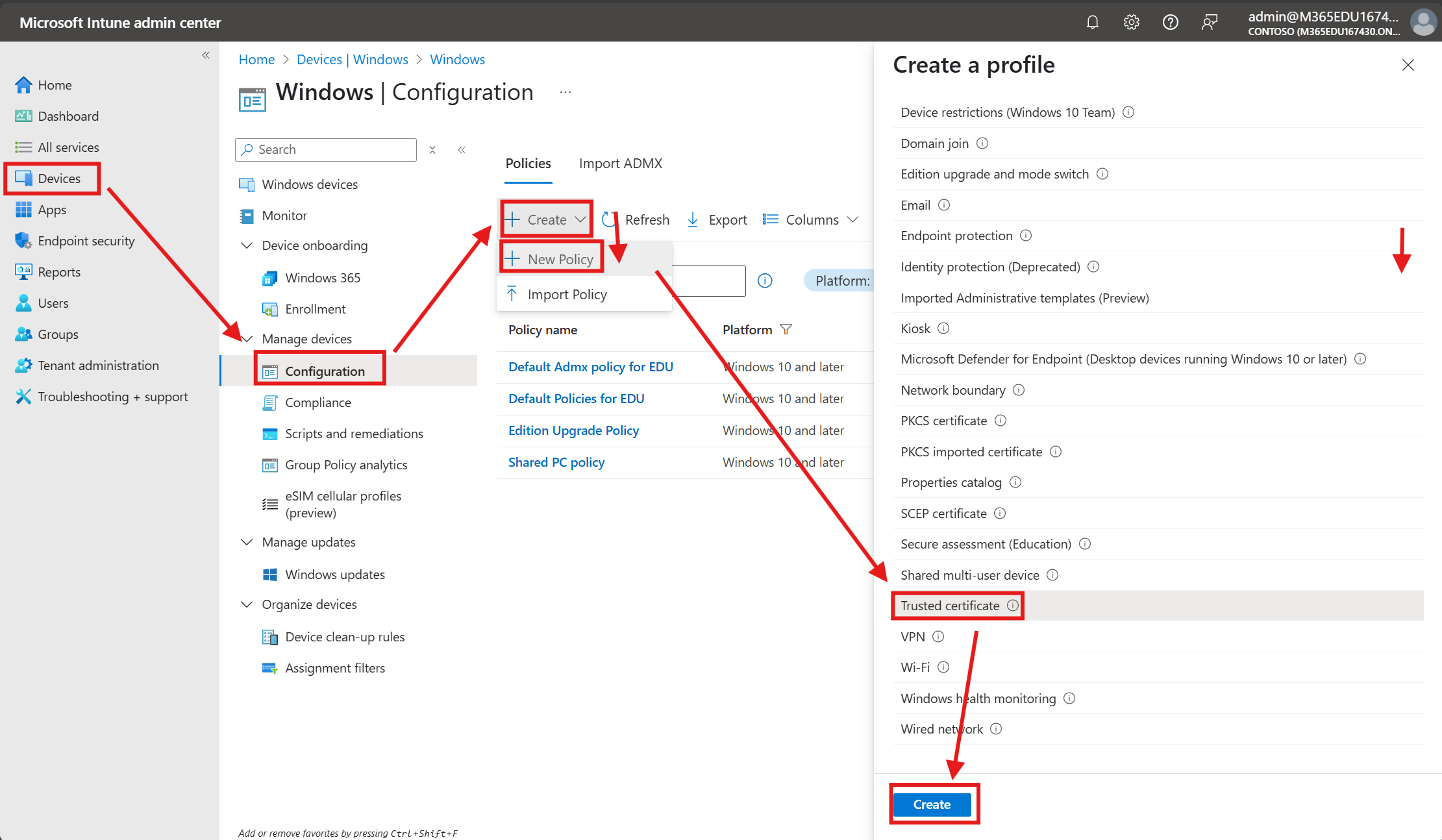
- Intune > Devices > Windows > Configuration > Create > New Policy > Windows 10 > Templates > Trusted Certificate
- Enter a name and upload the .cer file and import it as a trusted root.
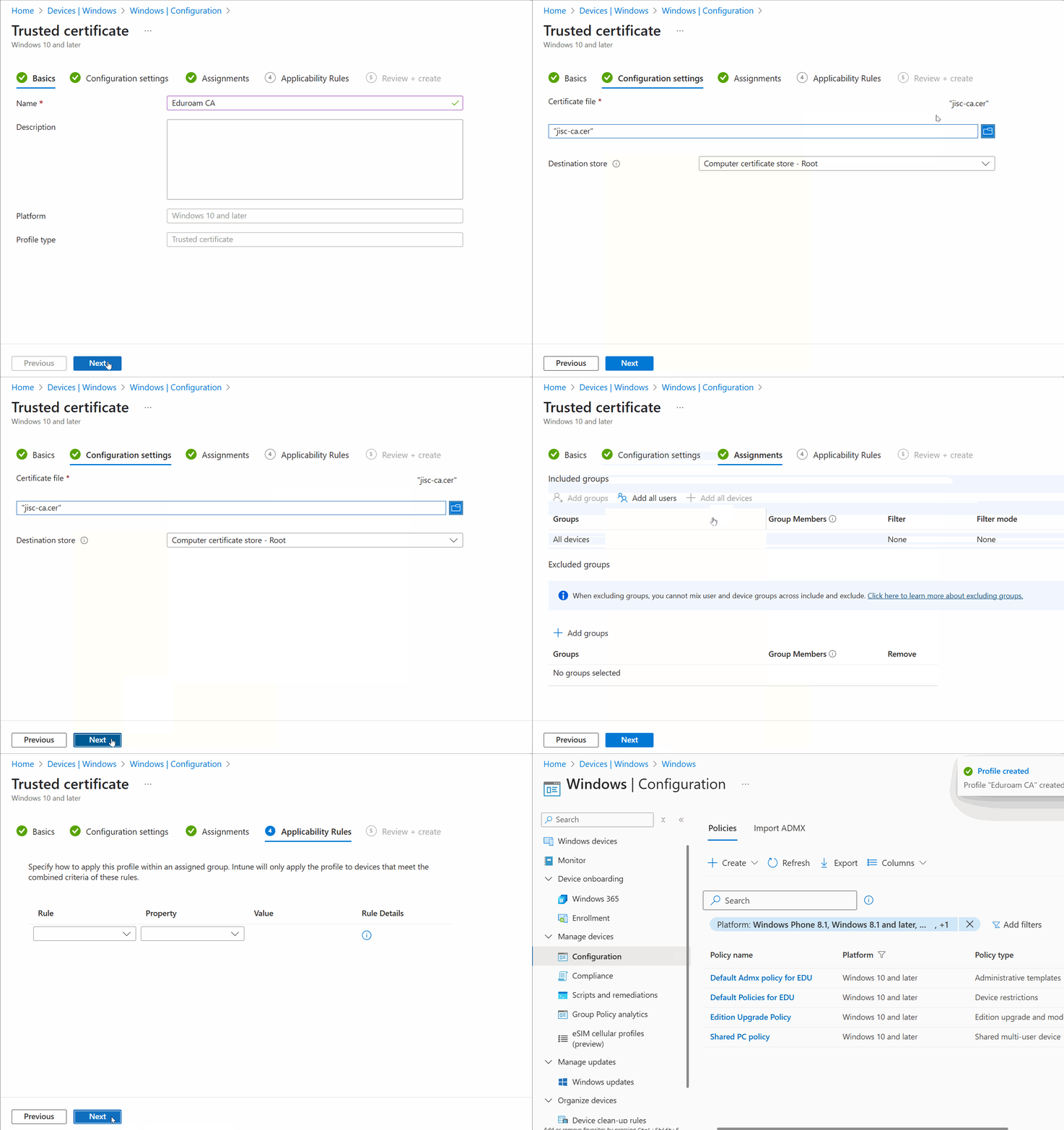
- Repeat for your other OS’s (Android/iOS/macOS)
Wi-Fi Configuration
Windows
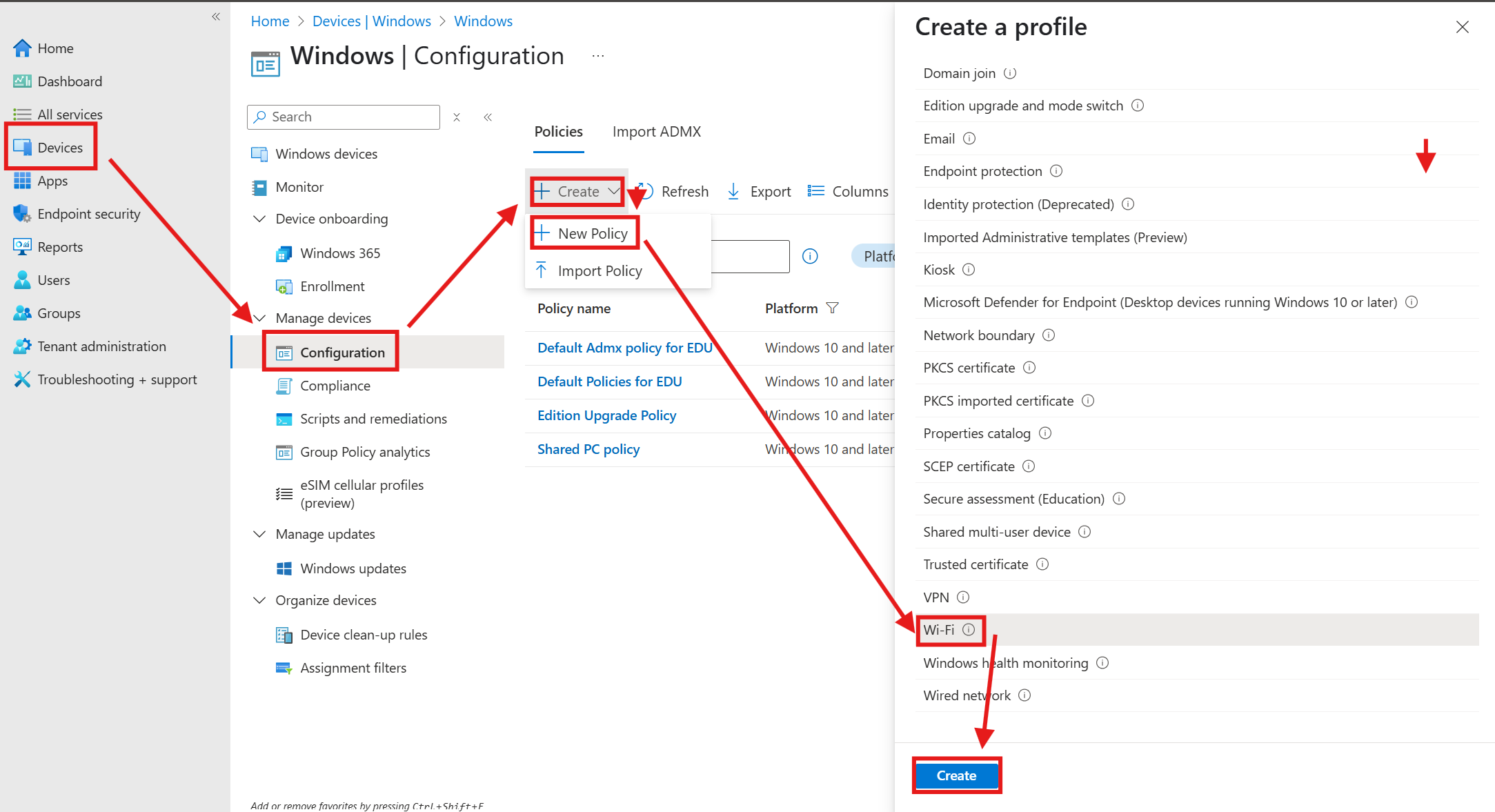
- Intune > Devices > Windows > Configuration > Create > New Policy > Windows 10 > Templates > Wi-Fi
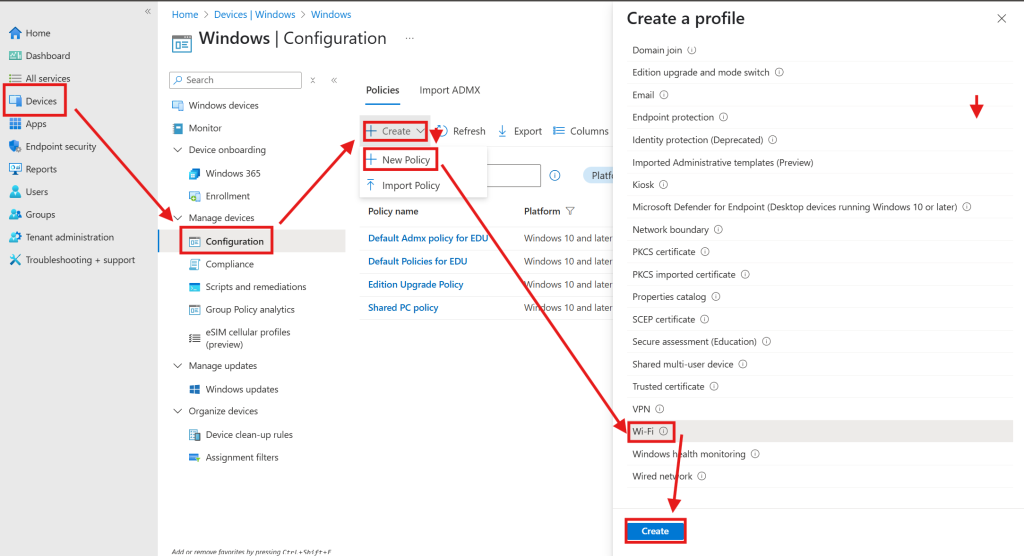
- Enter a name and description
- Under Configuration enter:
-
Wi-Fi type: Enterprise
-
Wi-Fi name (SSID): eduroam
-
Connection name: eduroam
-
Connect automatically when in range: Yes
-
Connect to this network, even when it is not broadcasting its SSID: No
-
Metered Connection Limit: Unrestricted
-
Force Wi-Fi profile to be compliant with the Federal Information Processing Standard (FIPS): No
-
Company proxy settings: None
-
Authentication Mode: User
-
Remember credentials at each logon: enable
-
Single sign-on (SSO): Disable
-
Enable pairwise master key (PMK) caching: Yes
-
Maximum time a PMK is stored in cache: 720
-
Maximum number of PMK’s stored in cache: 128
-
Enable pre-authentication: No
-
EAP type: Protected EAP (PEAP)
-
Certificate server names: your eduraom radius server FQDNs
-
Root certificates for server validation: Select CA from before
-
Authentication method: Username and password
-
Perform server validation: Yes
-
Disable user prompts for server validation: Yes
-
Require cryptographic binding: No
-
-
Assign and deploy

Android
- Intune > Devices > Android Enterprise > Configuration > Create > New Policy > Templates > Wi-Fi
- Configure with:
-
SSID: eduroam
-
Connect automatically: Enable
-
Hidden network: Disable
-
EAP type: PEAP
-
Radius server name: your eduroam radius servers
-
Root certificate for server validation: Certificate from above
-
Authentication method: Username and password
-
Non-EAP method for authentication (inner identity): Microsoft CHAP Version 2 (MS-CHAP v2)
-
- Assign as required
iOS
- Intune > Devices > iOS/iPad OS > Configuration > Create > New Policy > Templates > Wi-Fi
- Configure with:
-
Network name: eduroam
-
SSID: eduroam
-
Connect automatically: Enable
-
Hidden network: Disable
- Security type: WPA/WPA2-Enterprise
-
EAP type: PEAP
-
Certificate server names: your eduroam radius servers
-
Root certificates for server validation: Select Certificate imported before
-
Authentication method: Username and password
-
- Assign as required
macOS
- Intune > Devices > macOS > Configuration > Create > New Policy > Templates > Wi-Fi
- Configure with:
-
Deployment Channel: Device Channel
-
SSID: eduroam
-
Connect automatically: Enable
-
Hidden network: Disable
-
EAP type: PEAP
-
Certificate server names: your eduroam radius servers
-
Root certificates for server validation: Select Certificate imported before
-
Authentication method: Username and password
-
- Assign as required
